CTRL DUCK
CTRL Duck is a send and receive sidechain ducker. One track sends its audio to a bus, and any track listening to that bus is ducked whenever the sent signal crosses the threshold. There is no sidechain routing to set up: place CTRL Duck on each track and choose the same bus.
The amount, timing, and shape of the duck are fully adjustable. The filter and EQ stages let you choose exactly which frequencies of the receiving track get ducked, so a kick can carve space out of a bassline's low end while its highs stay untouched.
Download for Gen 2 Download for Gen 1Installation
CTRL Duck is installed by copying its folder into VST2 Plugins on your device.
Copy the Plugin to Your Device
- Download the ZIP archive that matches your MPC:
- Extract the ZIP archive. It contains one folder named CTRL - VST - CTRL Duck.
- Connect your MPC to your PC with a USB cable.
- Put your MPC into Controller Mode.
- Open File Explorer and locate the MPC User drive.
- If it does not already exist, create a folder named VST2 Plugins in the root directory of the MPC User drive. The name must match exactly.
- Copy the CTRL - VST - CTRL Duck folder into VST2 Plugins. Copy the folder itself, not just the files inside it.
- Safely eject the MPC User drive from your computer.
- On your MPC, tap Standalone to return to Standalone Mode.
Add CTRL Duck to Your Tracks
- Open a project.
- Navigate to the Mixer.
- Add an effect to the mixer channel of each track that should send or receive.
CTRL Duck should now appear as an available effect under External Plugins → CTRL. Each new instance starts in Select mode: choose Sender or Receiver on its MODE page.
How It Works
Every instance of CTRL Duck runs in one of three modes, chosen on the MODE page.
Sender Trigger track
Sends its track's audio to the selected bus. The track's own audio passes through unchanged.
Place a sender on the track that should cause the duck, such as a kick. If you only want the kick to trigger the duck without being heard, turn that track's mixer volume all the way down: the sender still sends.
Receiver Ducked track
Listens to the selected bus and ducks its own track's audio whenever the bus signal crosses the threshold.
Place a receiver on each track that should be ducked, such as a bass, a pad, or a full music bus.
Select Default
The plugin is idle. Audio passes through unchanged, and nothing is sent or received. A new instance always starts in this mode.
- Buses: Eight buses are available, so separate duck groups can run side by side.
- Several senders on one bus: Their signals are added together before the receiver detects them.
- Several receivers on one bus: Each one reacts to the same bus with its own settings.
- Limit: Up to 32 senders at once, across all buses.
Signal Processing Chain
In a receiver, the bus signal controls the duck through the following stages in order:
The receiving track's own audio never passes through the filters or EQ. They only decide which of its frequencies are ducked, and by how much.
Mode & Bus
The MODE page holds the two settings that connect instances together.
- Mode: Select, Sender, or Receiver. Defaults to Select.
- Bus: Bus 1 to 8. Defaults to Bus 1. A sender and its receivers must share the same bus.
In Sender mode, a SENDER MODE banner covers the controls on the INPUT and FILTER pages, because they only affect a receiver. The meters stay visible.
Input Controls
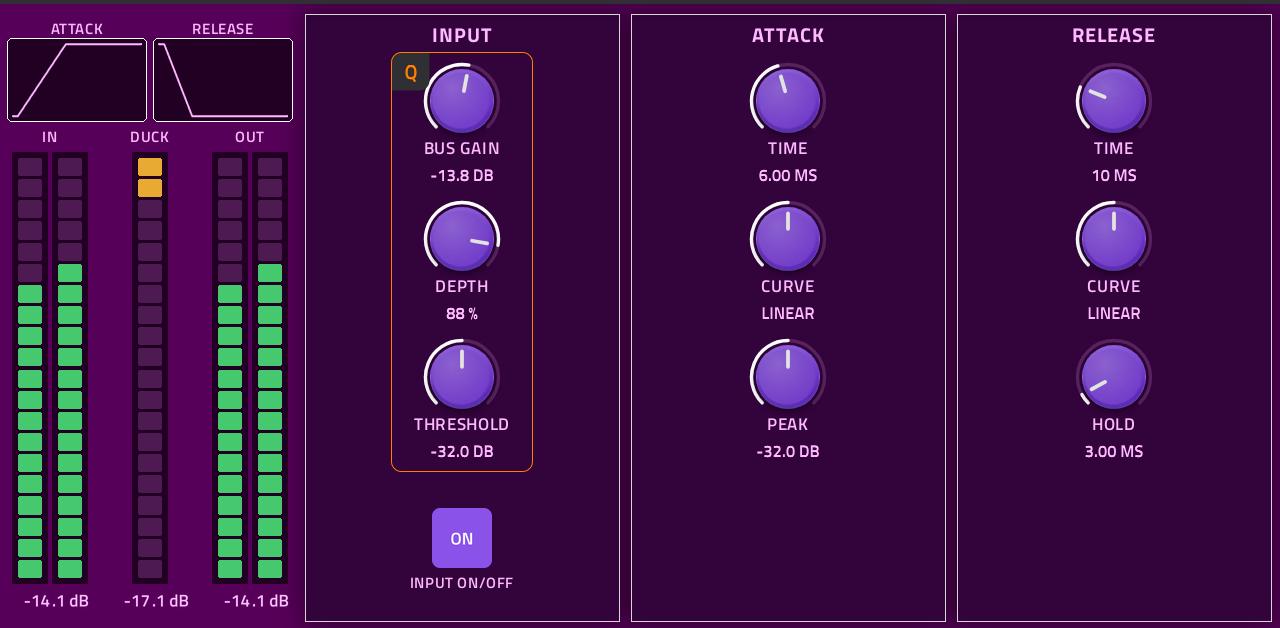
The INPUT column sets how the bus signal is detected and how strongly the duck is applied.
| Control | Range | Default |
|---|---|---|
| BUS GAIN | -∞ dB to +24 dB | 0 dB |
| DEPTH | 0% to 100% | 100% |
| THRESHOLD | 0 dB to -64 dB | -32 dB |
| INPUT ON/OFF | On or Off | On |
- Bus Gain: Sets the level of the bus signal entering the receiver, before the threshold. Raise it to make a quiet sender trigger the duck sooner.
- Depth: Blends between the dry and the ducked signal. At 100% the full duck is applied; at 0% the track is not ducked at all.
- Threshold: The bus level at which the duck is triggered.
- Input On/Off: Turns ducking on or off for this receiver. When off, the track is never ducked.
Attack & Release
The ATTACK and RELEASE columns shape the duck over time.
Attack
Controls how the duck moves in once the threshold is crossed.
- Time: 0 ms to 1 second. Default 6 ms. At 0 the duck is applied as fast as possible without clicking.
- Curve: Shapes the movement from FAST (most of the duck happens at the start), through LINEAR, to SLOW (most of the duck happens at the end). Default LINEAR.
- Peak: 0 dB to -64 dB. Default -32 dB. Sets how far the track is ducked at the top of the duck.
Release
Controls how the track returns to full level once the bus signal falls below the threshold.
- Time: 0 ms to 10 seconds. Default 10 ms.
- Curve: Shapes the return from FAST, through LINEAR, to SLOW. Default LINEAR.
- Hold: 0 ms to 1 second. Default 3 ms. Keeps the track fully ducked for this long before the release begins.
The duck always follows the same order:
- Attack: Once started, the attack always runs to the full Peak depth, even if the bus signal drops again.
- Top: The duck stays at full depth while the bus signal is above the threshold.
- Hold, then Release: Once the signal falls below the threshold, the hold time passes and the release begins.
- Retrigger: A new hit during the release starts the attack again from the current level, without a jump.
Meters & Displays
The INPUT and FILTER pages share the same meters and displays at the left of the screen.
- Attack display: Shows the attack's shape and length. The ramp grows wider as the time increases and bends with the curve.
- Release display: Shows the release's shape and length in the same way. Hold is not drawn.
- IN meters: Display the track's incoming left and right signal levels.
- DUCK meter: Displays how far the track is ducked right now, lit from the top down. Its number shows the reduction in dB, with Depth included.
- OUT meters: Display the plugin's output levels.
Each meter shows a red border when the signal reaches full scale.
Filtering
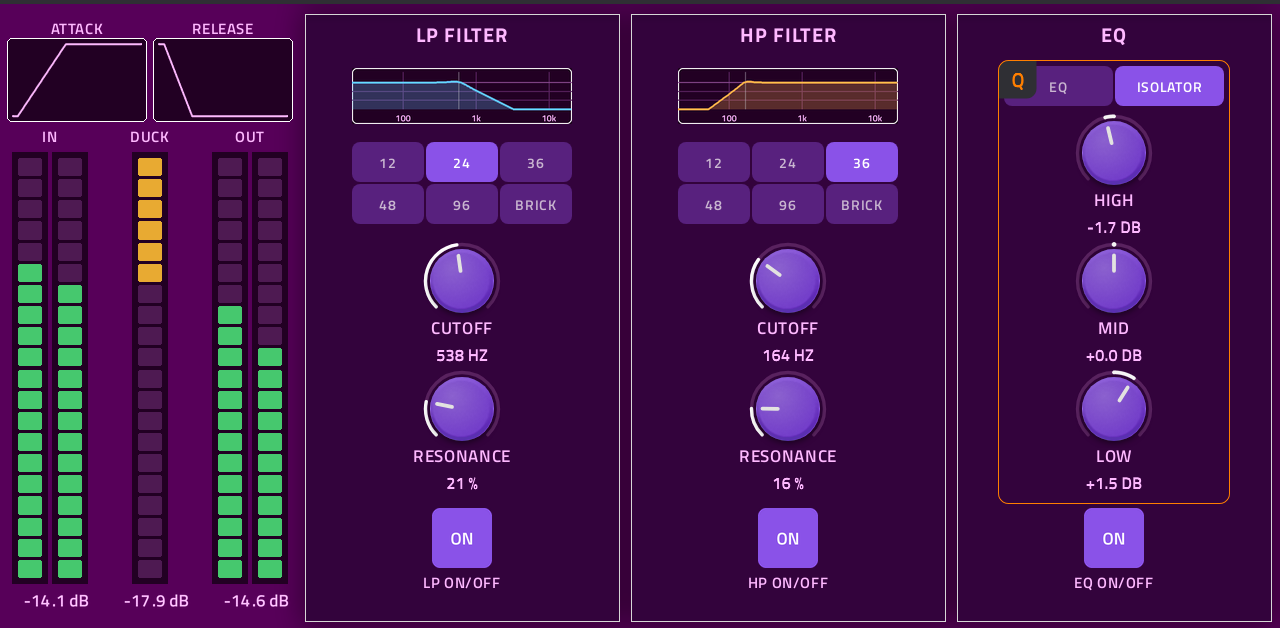
The filters choose which frequencies of the receiving track are ducked. Frequencies outside the filters' range pass through untouched, while the bus is triggering or not.
Low-Pass Filter
Only frequencies below the cutoff are ducked. Use it to duck a bass's low end while its upper harmonics stay present.
High-Pass Filter
Only frequencies above the cutoff are ducked. Use it to keep a track's sub-bass steady while the rest of it ducks.
With both filters active, only the range between the two cutoffs is ducked. Both filters provide the following controls:
- Cutoff: Sets the edge of the ducked range, from 20 Hz to 20 kHz. A low-pass fully open or a high-pass fully closed has no effect.
- Resonance: Ducks the frequencies just inside the cutoff deeper, up to twice the depth.
- Curve: Selects how sharply the ducked range ends at the cutoff.
- Bypass: Independently enables or disables each filter.
| Available filter curves | Low-Pass | High-Pass |
|---|---|---|
| 12 dB/octave | 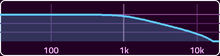 | 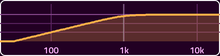 |
| 24 dB/octave | 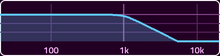 | 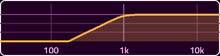 |
| 36 dB/octave | 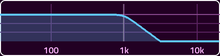 | 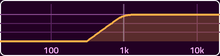 |
| 48 dB/octave | 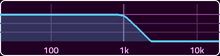 | 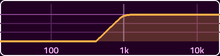 |
| 96 dB/octave | 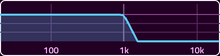 | 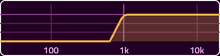 |
| Brickwall | 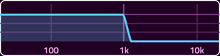 | 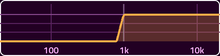 |
The pictures show each curve at a 1 kHz cutoff with no resonance, as the display above each filter's controls shows it.
Equalization
The EQ sets how much each frequency band is ducked compared with the Peak setting. A band turned up is ducked more, and a band turned down is ducked less.
| Band | Frequency Range |
|---|---|
| LOW | Below 250 Hz |
| MID | 250 Hz to 2,500 Hz |
| HIGH | Above 2,500 Hz |
For example, with Peak at -32 dB, LOW at +6 dB ducks the low end by 38 dB, and LOW at -10 dB ducks it by 22 dB. A band is never boosted: once its setting cancels the Peak, that band is simply not ducked.
Isolator Mode Default
Each band can be turned up by +6 dB, or turned fully down to a kill. A killed band is never ducked.
Ideal for ducking only one region, such as the low end, while the others stay completely steady.
EQ Mode
Each band can be turned up by +6 dB or down by -26 dB, for finer balance between the bands.
Bypass Controls
Input, LP, HP, and EQ each have their own ON/OFF switch. Tap a switch on the touchscreen to turn it on or off; the switches are not assigned to Q-Links.
A bypassed filter or EQ simply stops limiting which frequencies are ducked: the receiver then ducks the whole track by the Peak setting.
Utility Page
Every CTRL plugin has a UTILITY page. It provides the details needed for debugging and reporting issues, and in synthesizer plugins it also holds settings that change the plugin's overall behavior.
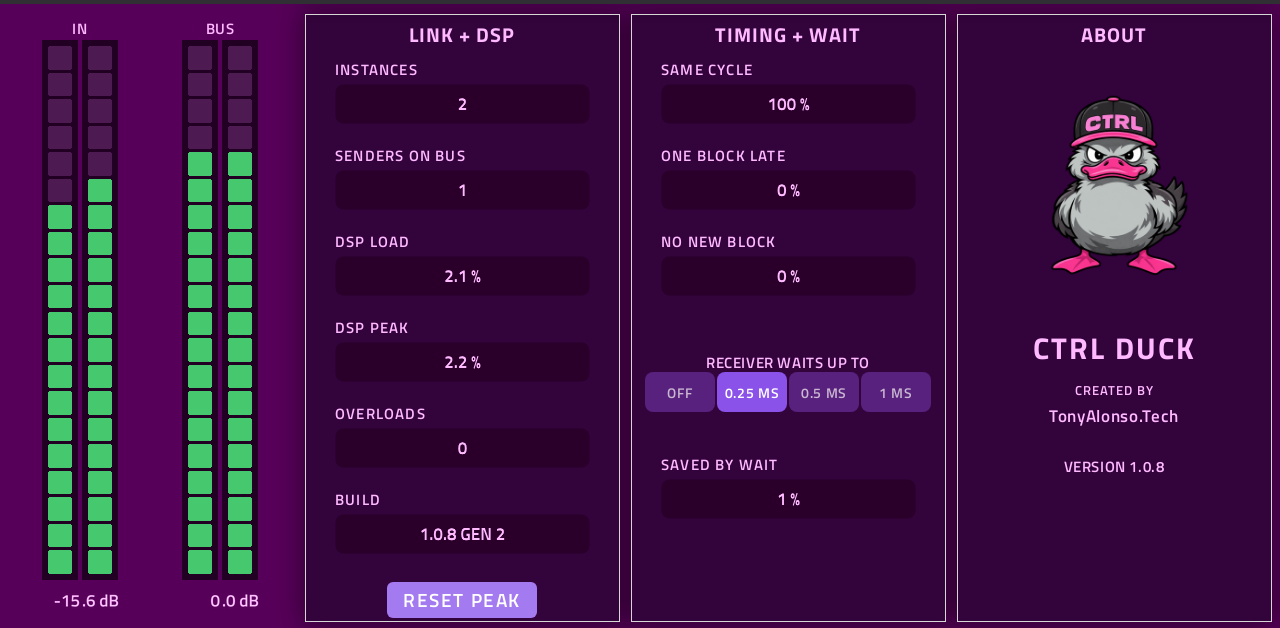
On CTRL Duck, the UTILITY page shows how well the bus is connecting your instances on your device and how the plugin is performing, along with plugin information. Readings update once per second. A reading shows "--" when it does not apply, for example a receiver percentage on a sender.
- IN meters: The track's incoming signal.
- BUS meters: The bus signal this receiver hears from its senders.
Link + DSP
- INSTANCES: The number of CTRL Duck instances currently running.
- SENDERS ON BUS: On a receiver, the number of senders on its bus.
- DSP LOAD: How much processing power CTRL Duck is currently using.
- DSP PEAK: The highest DSP load reached since the last reset.
- OVERLOADS: A counter of how many times processing has overloaded.
- BUILD: The plugin's version number and the MPC generation (Gen 1 or Gen 2) the build is for.
- RESET PEAK: Clears the DSP PEAK reading.
Timing + Wait
The MPC processes audio in short blocks of about 2.9 ms, and it decides the order in which tracks are processed. These readings, shown on a receiver, report how the sender's audio arrived for each block.
- SAME CYCLE %: The sender's block arrived in time. The duck is perfectly in time with the sender.
- ONE BLOCK LATE %: The receiver had to use the sender's previous block, so the duck arrived about 2.9 ms late.
- NO NEW BLOCK %: No new audio arrived from the sender at all.
- RECEIVER WAITS UP TO: Off, 0.25 ms, 0.5 ms, or 1 ms. Default 0.25 ms. How long a receiver waits for a sender's block that has not arrived yet.
- SAVED BY WAIT %: The blocks that would have been late, but arrived during the wait.
ABOUT
Shows the CTRL Duck logo and plugin name, who it was created by (TonyAlonso.Tech), and the plugin's version number.
Beta Testing
Thank you for testing CTRL Duck. Download the Gen 2 zip for second-generation devices (MPC Live III, One G2, Key G2, XL, and Akai Force G2), or the Gen 1 zip for first-generation MPCs (MPC Live, Live II, One, X, Key 61, Key 37) and the Akai Force, and install it as described in the Installation steps.
When you send in results, please include the following:
- Plugin version: The version you are testing. This can be found in the downloaded ZIP archive's name.
- Device: The model, and whether it is Gen 1 or Gen 2.
- Firmware: The MPC or Force OS version (MPC OS 3.10.1 or later).
- Project setup: How many senders and receivers, on which buses, and roughly how many other tracks and plugins are in use.
- Utility video (required): A short video of the UTILITY page, taken while the project plays, so the readings can be checked in action.
- Anything unexpected: Clicks, dropouts, a duck that is late or missing, controls that do not respond, or high CPU load. Where you can, include a short video showing the issue as it happens, with the sound audible.
Send your results using the form below. Share videos as an unlisted YouTube link.